My account

Boston Scientific accounts are for healthcare professionals only.

Create an account to access online training and education on EDUCARE, manage your customer profile, and connect with customer support and service teams.

My Boston Scientific account

Access your online applications and manage your customer profile.

Quick Links

Call customer care

two women enjoying the day outside

Cardiac monitor device support

Stay connected with the myLUX™ Patient App

Best practices and troubleshooting tips to stay connected

The myLUX Patient App* on your smartphone or the Boston Scientific provided mobile device transmits your heart rhythm data stored on your LUX-Dx™ Insertable Cardiac Monitor (ICM) to your health care team. It is very important to keep your app connected so your health care team can continue monitoring your heart rhythm remotely. Keep these best practices in mind.

Connected

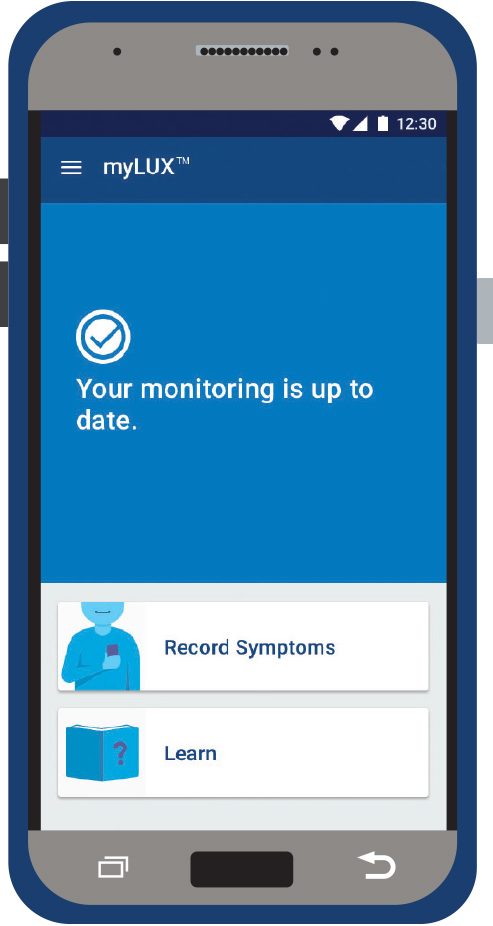
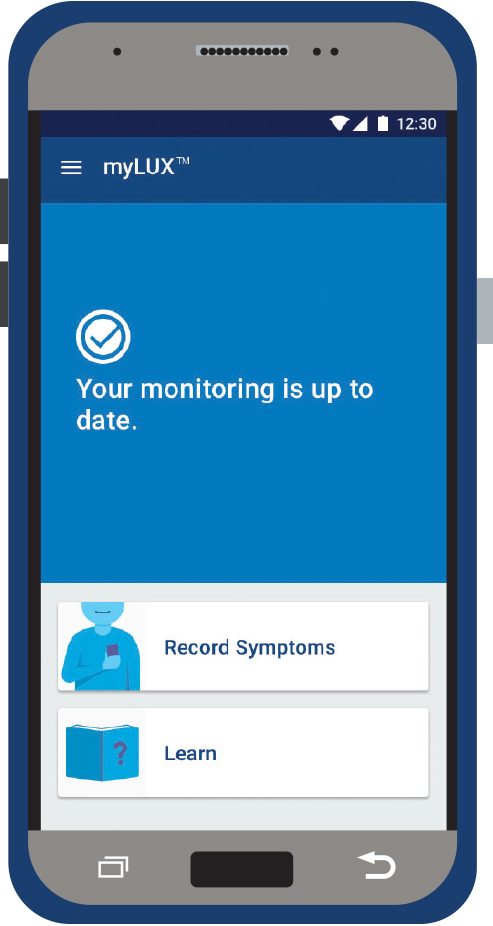
A blue screen with a check mark icon means your devices are connected and your monitoring is up to date.
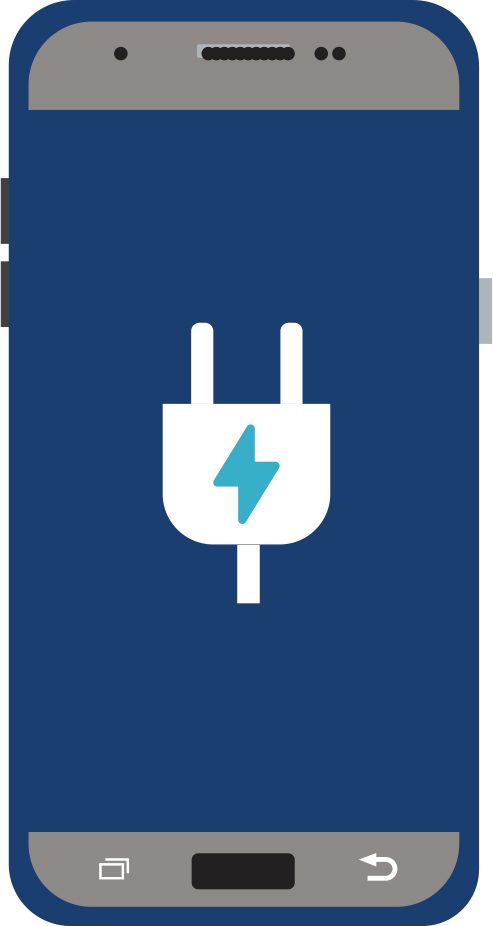
1. Plug in and charge your smartphone or mobile device each night.

screenshot of phone charging

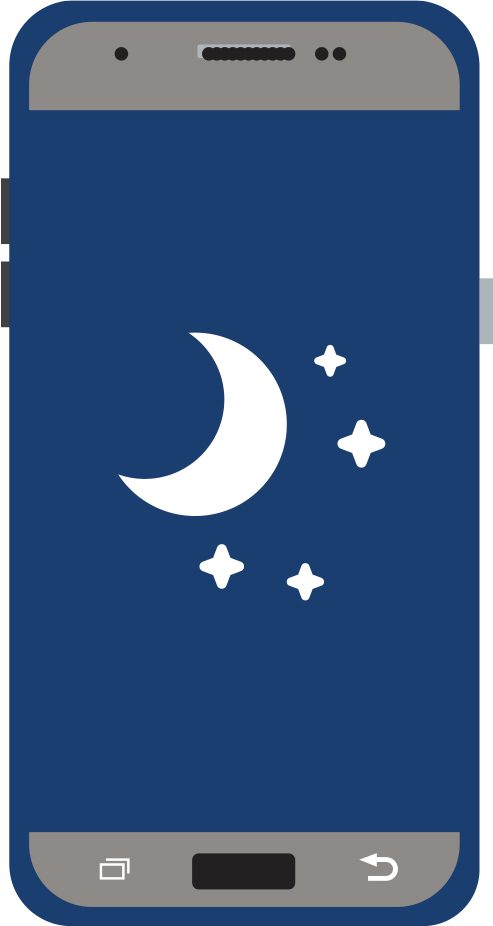
2. Place your smartphone or mobile device within 6 feet of where you sleep at night, or where you spend a considerable amount of time each day.

screenshot of a moon on a phone

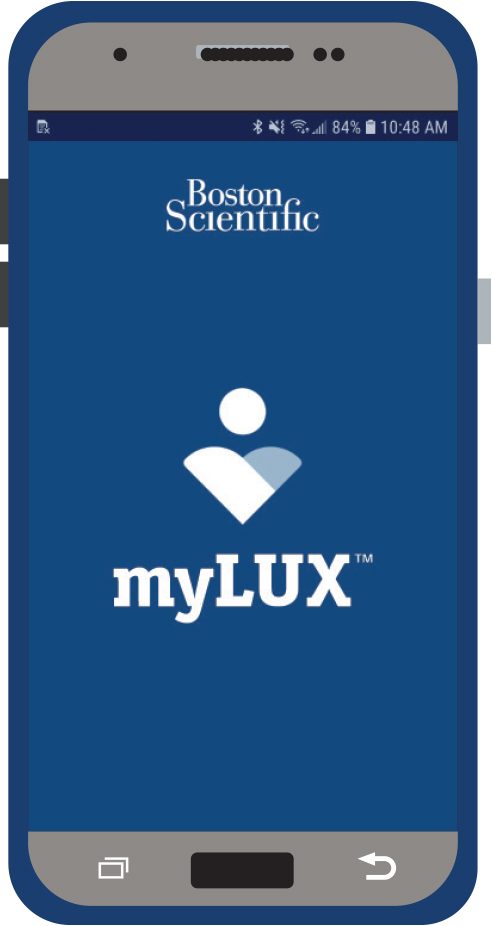
3. Keep your smartphone or mobile device powered on at all times. If you use a mobile device provided by Boston Scientific, press and hold the power key until the screen lights up to turn on your device.

screenshot of mylux app on phone

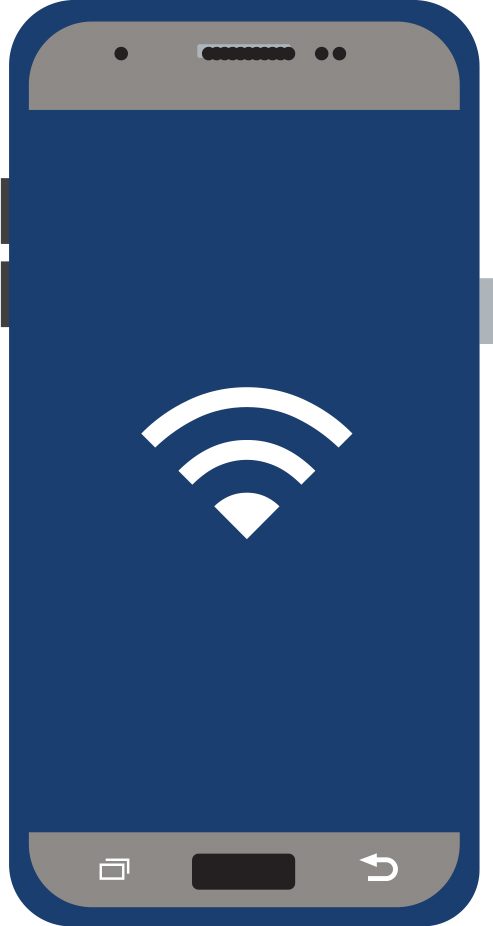
4. Connect your smartphone or mobile device to the internet via a Wi-Fi or cellular connection.

screenshot of wifi logo on phone

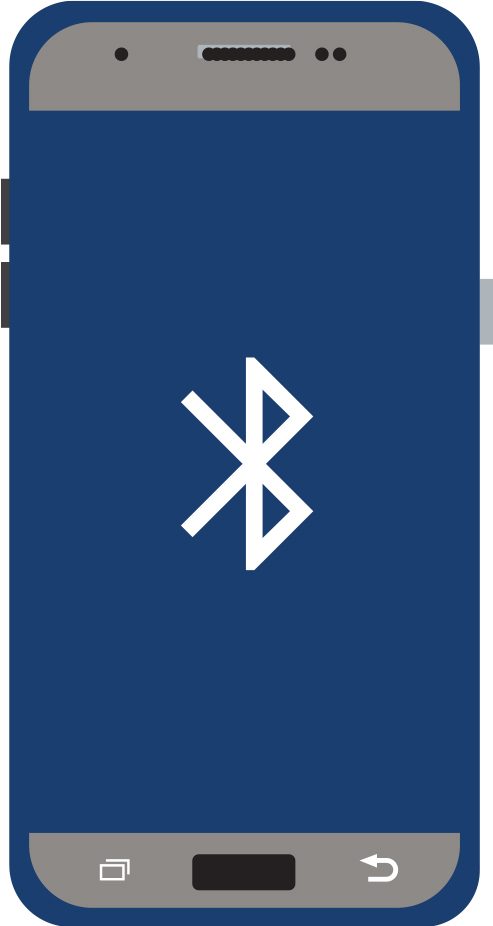
5. Keep Bluetooth® on so your app can connect to your ICM device.

pantalla de teléfono con ícono de señal de Bluetooth®

6. Check the myLUX Patient App often by tapping on the app and looking for a blue screen.

If you see a blue screen with the check mark icon noting your monitoring is up to date, no action is needed.

phone screenshot

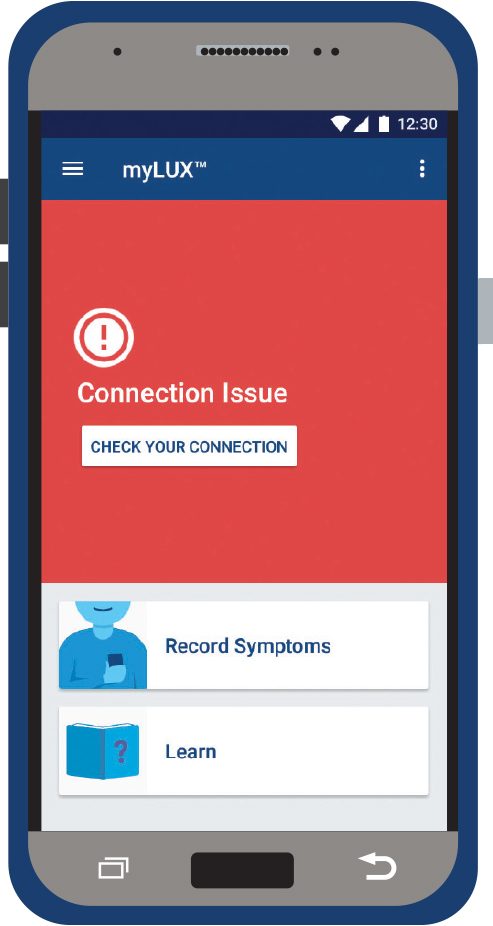
If you see a red screen and the exclamation point icon, your app is not able to connect to your ICM device or the internet. An option to check your connection will appear on the red screen. Tap the button to check your connection and follow the on-screen instructions. A message will confirm when your app is connected.

pantalla de teléfono que muestra pantalla roja e ícono de alerta

Other important tips to stay connected

Using your own smartphone

  • Do not quit (i.e., do not swipe up to close the app) or uninstall the app.
  • If you restart your smartphone, be sure to tap the app icon to reopen it.
  • Keep notifications turned on for your myLUX Patient App.
  • Keep background refresh and background data usage on.
  • Do not activate any settings on your smartphone that may hinder the app’s ability to conduct device checks in the background. This includes, but is not limited to, power save, low power, or battery optimization features.
  • Check the myLUX Patient App often. Always look for a blue screen and a check mark icon after you open your app. This confirms that your monitoring is up to date.
  • If you’ve signed up for the RhythmCARE™ Assist service, be sure to read any emails or text messages you receive. They will guide you through reconnecting the app with videos and instructions.

Using a mobile device provided by Boston Scientific

phone screenshot
  • Keep your mobile device charged and powered on.
  • Check the myLUX Patient App often. Always look for a blue screen and a check mark icon after you open your app. This confirms that your monitoring is up to date.
  • If you’ve signed up for RhythmCARE Assist, be sure to read any emails or text messages you receive. They will guide you through reconnecting the app with videos and instructions.

To learn more tips on how to stay connected, please read the Staying connected tip brochure.


Watch this video to see how to stay connected to the myLUX Patient App.

Recording your symptoms

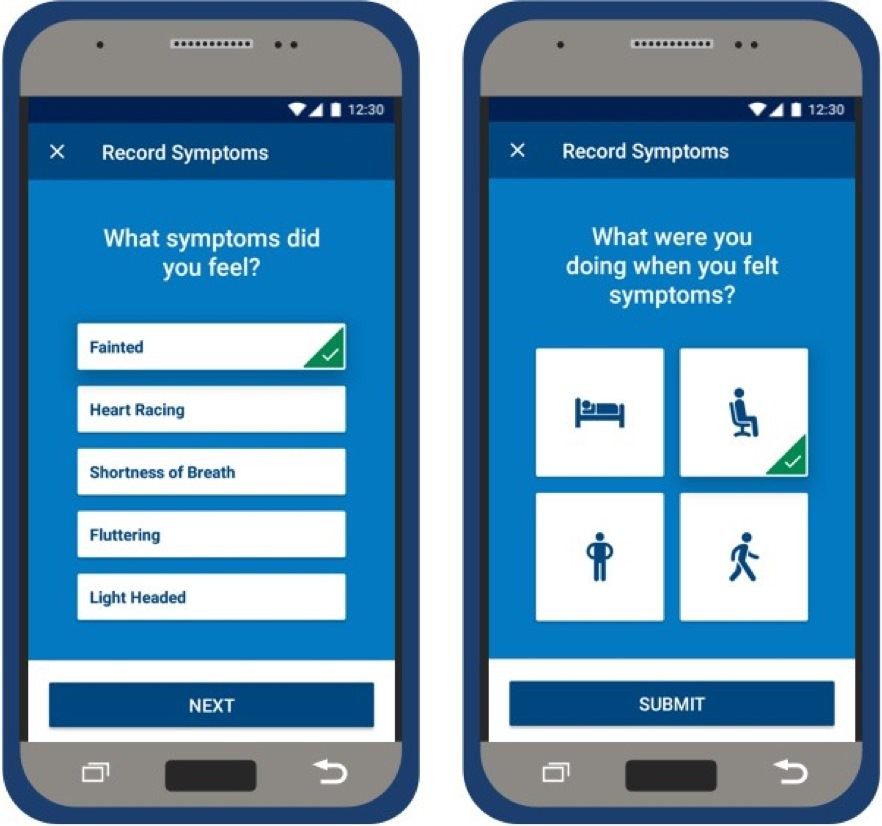
Your health care team will let you know if you need to record symptoms in your myLUX Patient App and which symptoms you should record. If your app doesn’t have a Record Symptoms button, that means your clinic hasn’t enabled this feature. If you have been asked to record symptoms in your app, be sure to record symptoms when you first feel them for accuracy.


Step 1

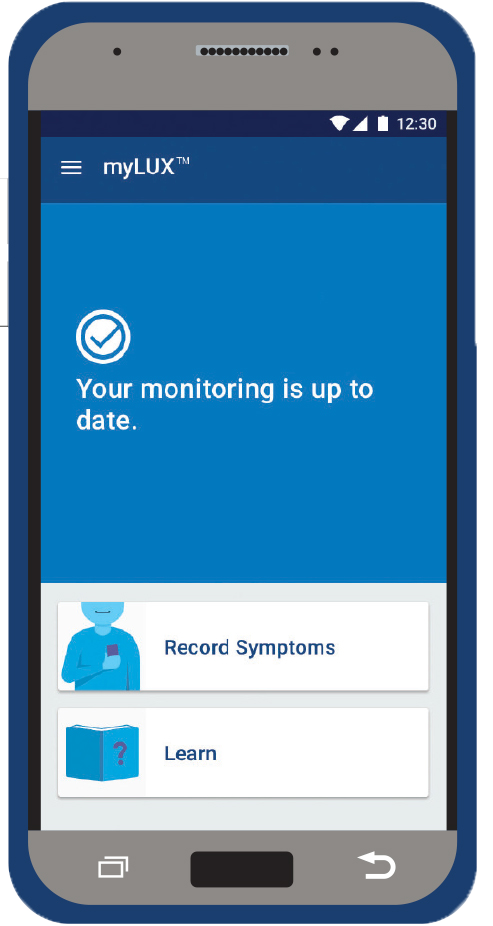
Tap Record Symptoms on your app’s main screen.


screen prompt with your monitoring is up to date

Step 2

Follow the instructions on the screen. Connecting may take several minutes. A green checkmark will appear based on your responses.

Mobile device with Record Symptoms screen

Step 3

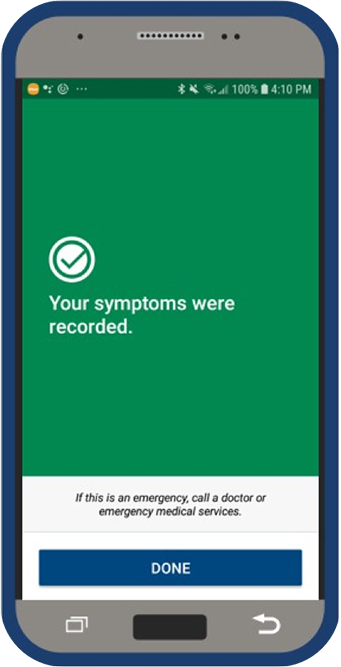
Once you see a screen confirming your symptom was recorded, tap Done.

Mobile device with green successful recording of symptoms screen

Watch this quick video for step-by-step instructions on how to record your symptoms.

Sending manual transmissions

For the most part, the LUX-Dx ICM system automatically collects and sends your recorded heart rhythms to your health care team. Occasionally, your care team may also ask you to send a manual transmission, but these should only be sent when you are asked to do so by your health care team.

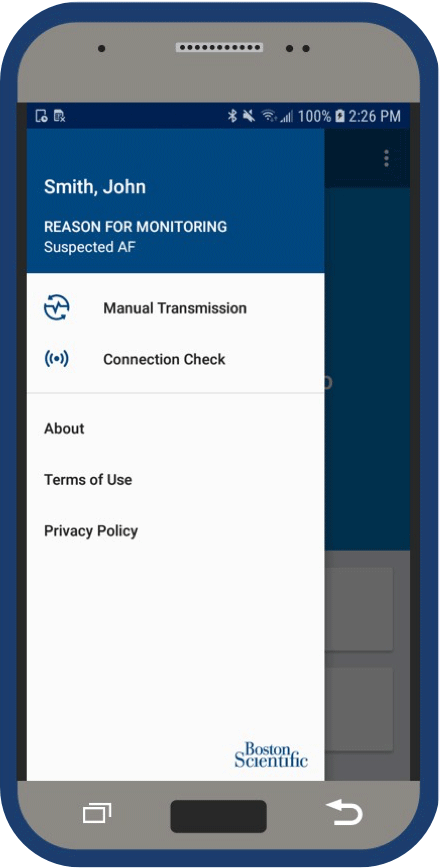
Mobile device showing open menu on myLUX app

Tap the Menu icon (Ξ) in the upper left corner of your app screen.

Select Manual Transmission. Follow the instructions on the screen.

Note
Connecting to your ICM device may take several minutes. A message will confirm when this is complete.

Tap Done.

Watch this video to see how to send a manual transmission from the myLUX Patient App.

Discover more in the myLUX Patient App

We made it easy to access all the information above when you’re in your myLUX Patient App.

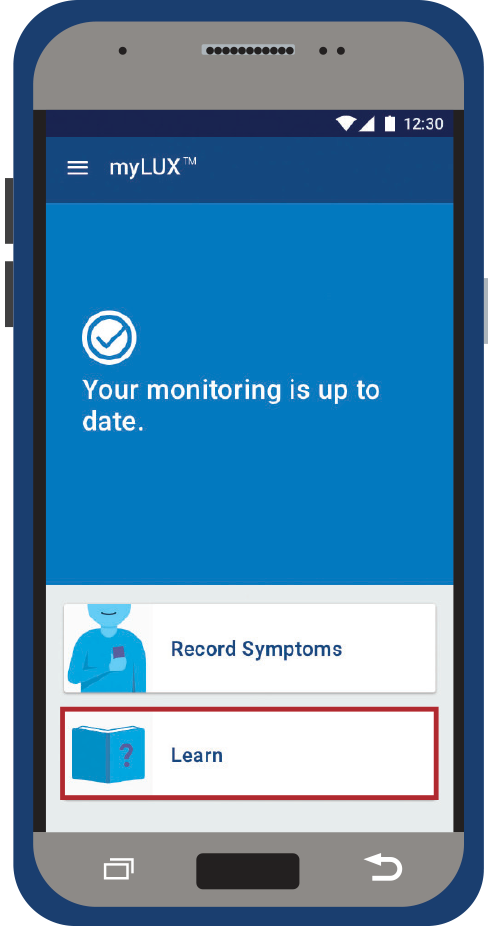
Just tap the Learn button at the bottom of the main app screen to see tips for using your app, FAQ and more.

screen prompt with your monitoring is up to date

We’re here to help 

Call Boston Scientific RhythmCARE™ Patient Services at 1-866-484-3268, Monday–Friday during business hours and select the option for LUX-Dx™ ICM.

Support and resources

*The downloadable myLUX™ Patient App and RhythmCARE™ Assist Service may be available for compatible LUX-Dx™ ICMs. Check with your health care provider for more information.

References to "LUX-Dx ICMs" includes LUX-Dx™, LUX-Dx II™ and LUX-Dx II+™ ICM Systems.

Some pictures of phone screens may look different from the screen on your mobile device, based on specific phone models or OS versions.

All trademarks are the property of their respective owners.