My account

Boston Scientific accounts are for healthcare professionals only.

Create an account to access online training and education on EDUCARE, manage your customer profile, and connect with customer support and service teams.

My Boston Scientific account

Access your online applications and manage your customer profile.

Quick Links

Call customer care

man and woman viewing a smartphone together

Cardiac monitor device support

Setting up the myLUX™ Patient App


Set up steps for the myLUX Patient App*

Follow the device-specific instructions below to easily set up our app on:

1. Your own smartphone (iPhone™ or Android™ smartphone)

2. A Boston Scientific provided mobile device

Some pictures of phone screens and buttons may look different on your mobile device based on specific phone models or OS versions.

If you've already downloaded the myLUX Patient App, it's time to take the next step. If you have not yet downloaded the app, you can get started here.
Step 1

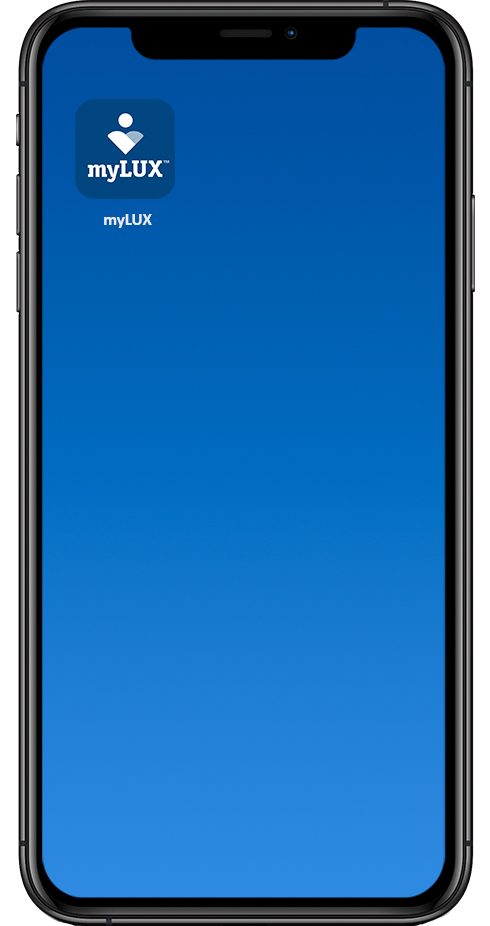
After the myLUX Patient App has downloaded, tap on the app icon.

myLUX app home screen on smartphone

Step 2

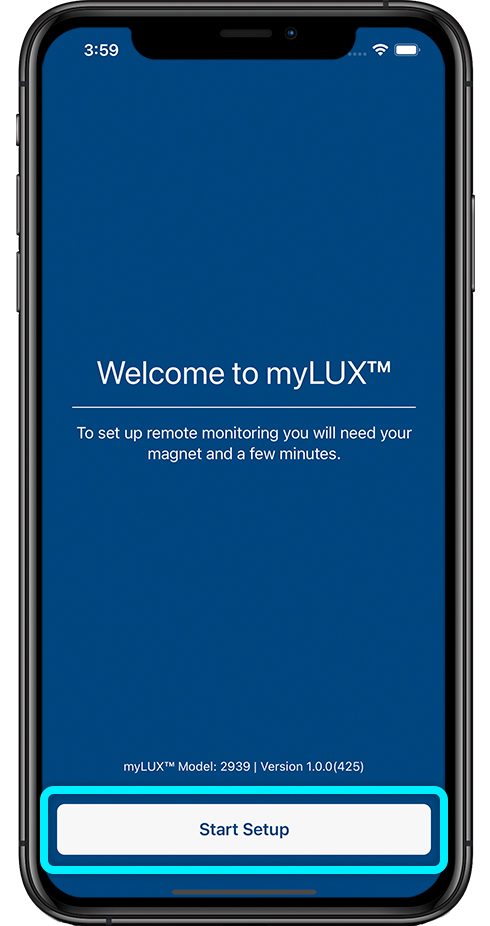
Tap Start Setup.

Welcome screen to start set up

Step 3

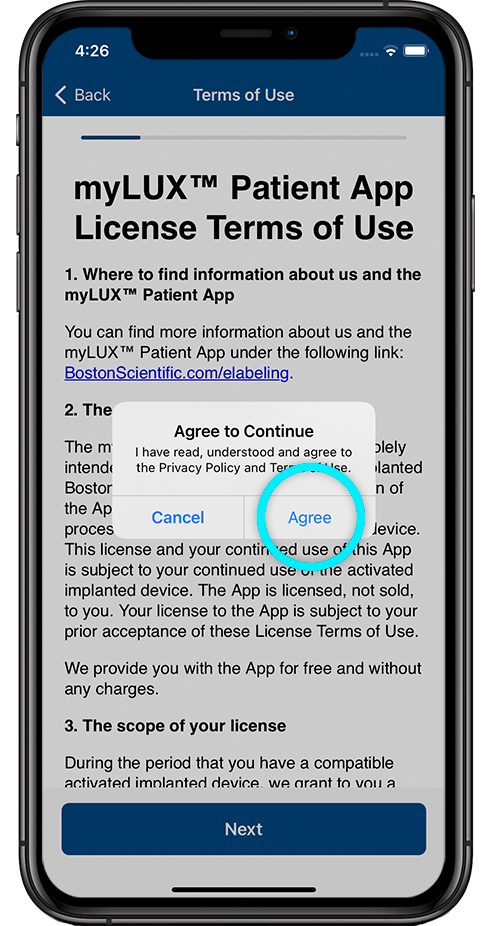
Read the license terms of use and privacy policy. Tap Agree.

license terms of use screen with prompt to agree

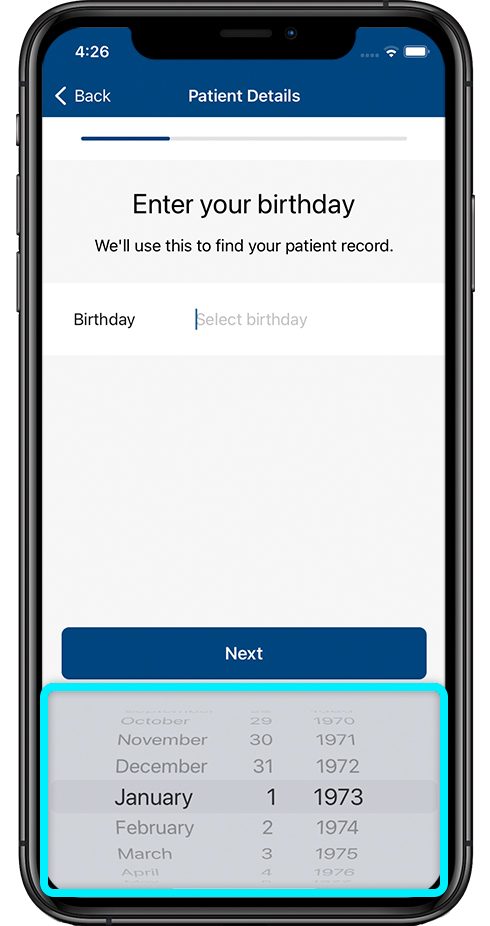
Step 4

Enter your birth date.

screen to input your birthdate

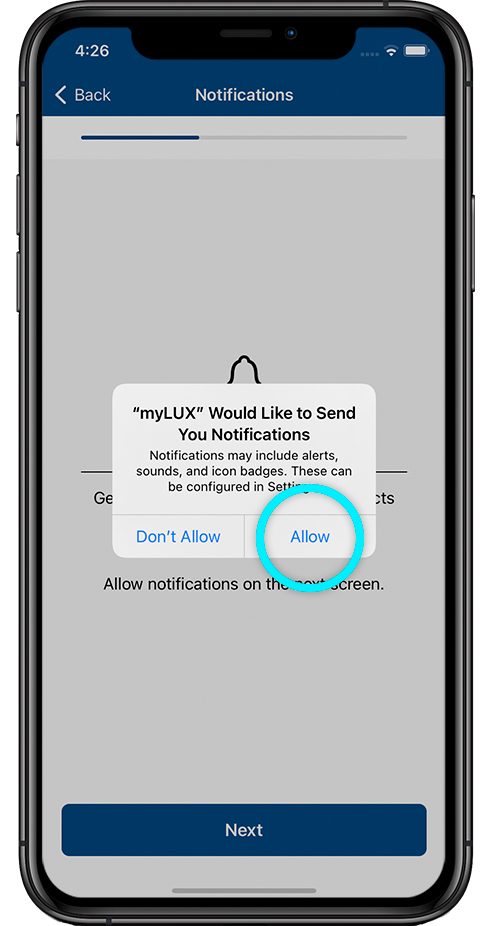
Step 5

Tap Allow for notifications.

You must do this so the app can send you alerts if you lose connectivity or there’s other important information to know.

screen prompt to allow notifications

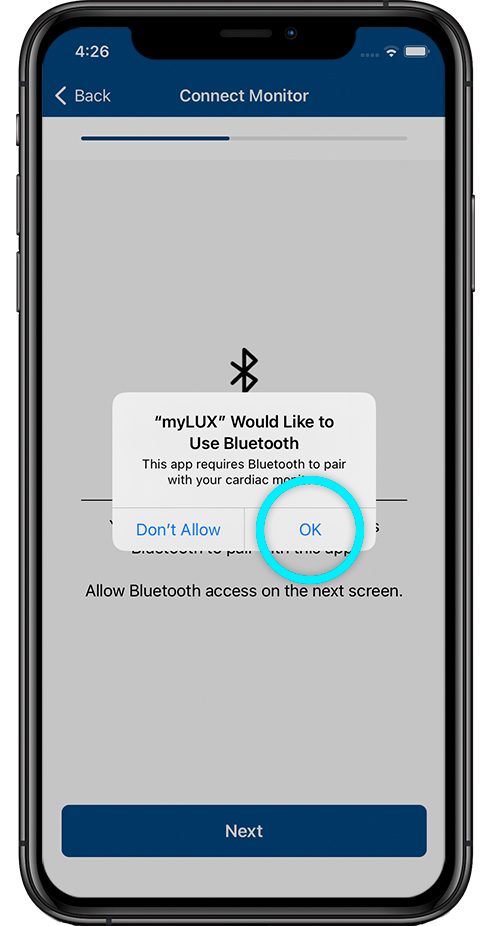
Step 6

Tap OK to let the myLUX Patient App use Bluetooth®. This is required for the app to connect with your ICM.

screen prompt to allow Bluetooth

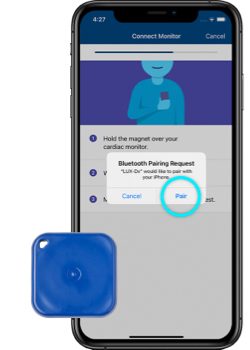
Step 7

Remove the blue magnet from your myLUX™ Patient Kit. Hold the magnet over your cardiac monitor and wait for a vibration on your smartphone. After you feel the vibration, tap Pair and then move the magnet away from your chest. You may see multiple pairing requests throughout the setup process—tap Pair each time as it comes up. This may take a couple of minutes.

screen prompt to allow Bluetooth pairing

Step 8

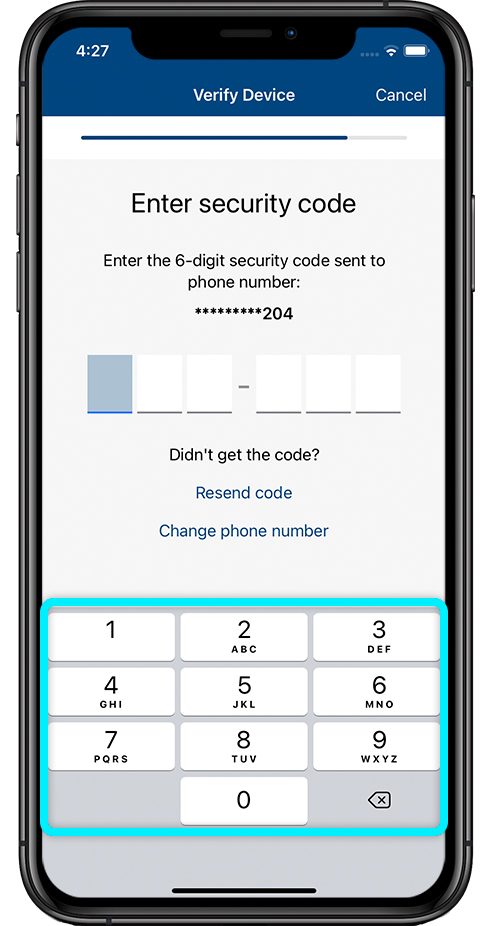
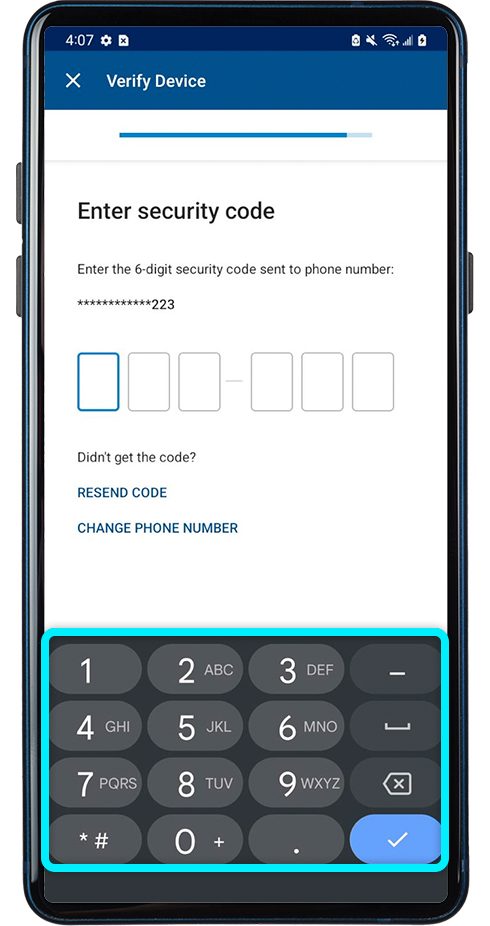
Enter your phone number or email address.

Tap Next and you’ll receive a one-time security code. If it doesn’t autofill, type in the code.

screen prompt to allow Bluetooth pairing

Finish

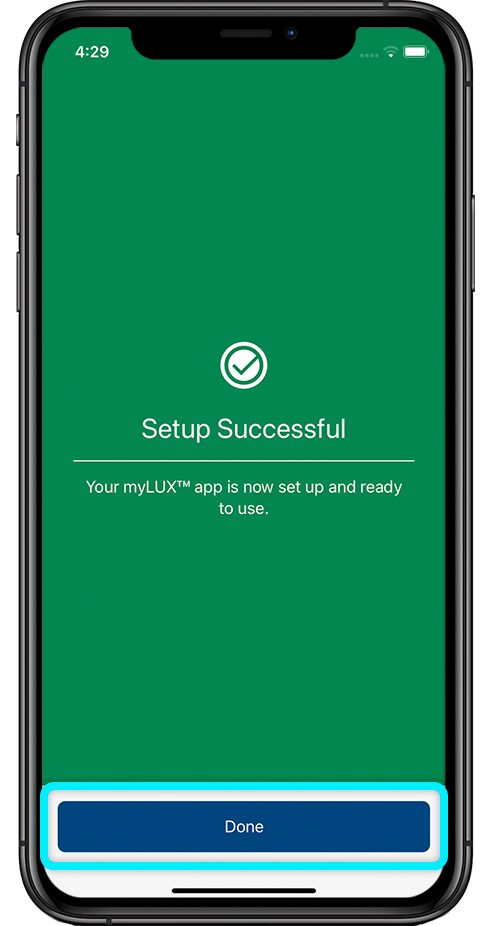
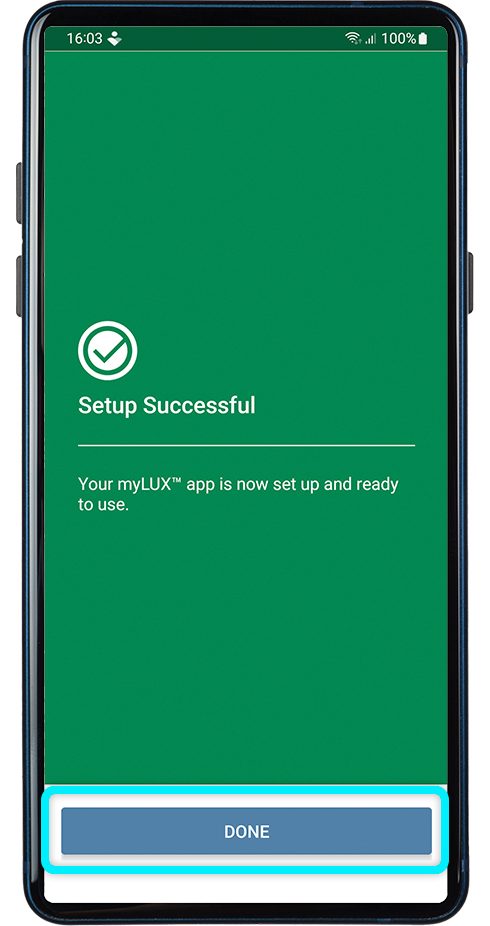
If you see a green screen, your setup was a success. Tap Done. You can now use the myLUX Patient App to stay connected to your health care provider.

green screen showing successful set up

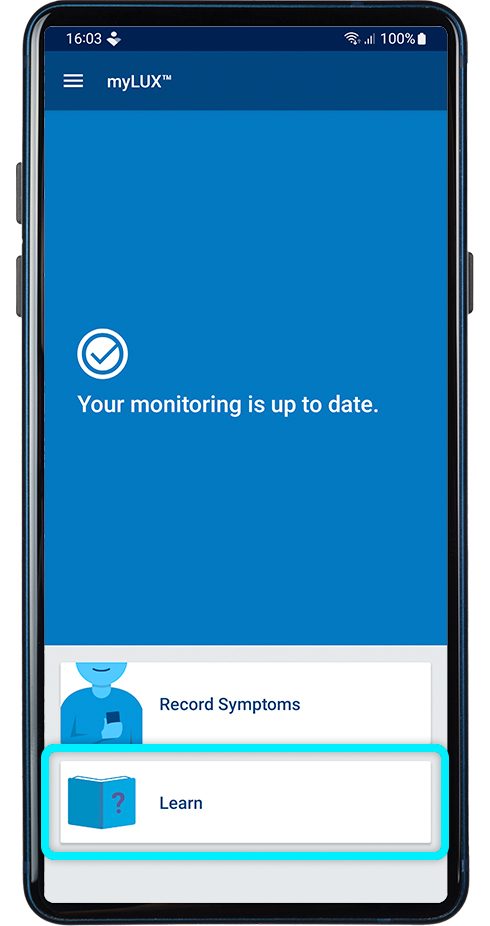
Check the myLUX Patient App often. Always look for a blue screen and a check mark icon after you open your app. This confirms that your monitoring is up to date.

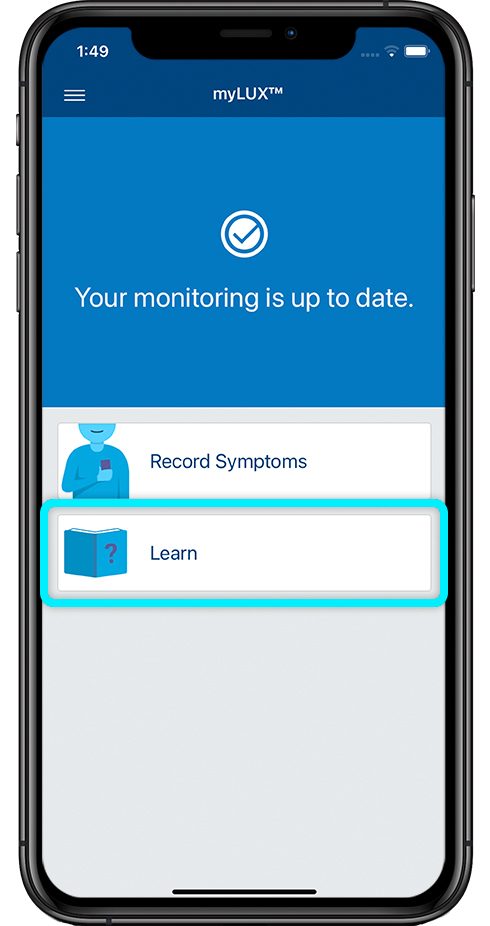
To learn more about the app, tap the Learn button within the myLUX Patient App.

screen with button to learn more about the myLUX app

If you've already downloaded the myLUX  Patient app, it's time to take the next step. If you have not yet downloaded the app, you can get started here.
Step 1

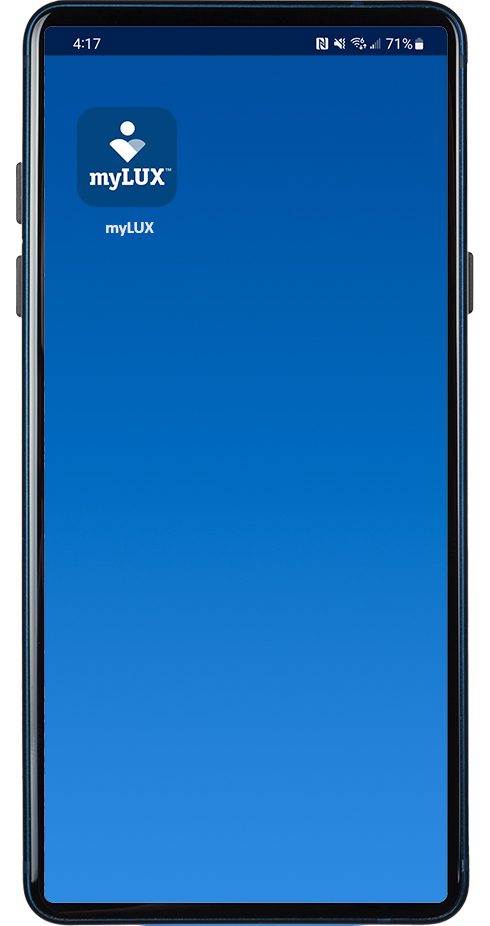
After the myLUX Patient App has downloaded, tap on the app icon.

myLUX app home screen on smartphone

Step 2

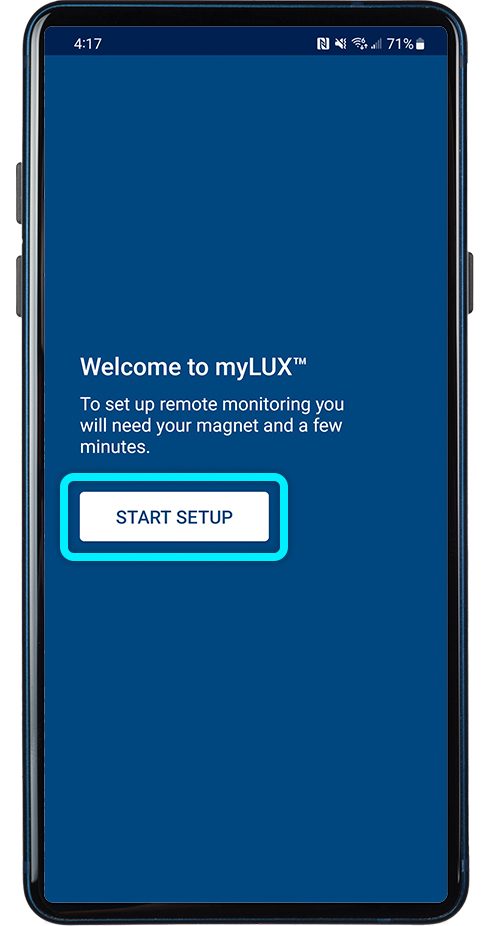
Tap Start Setup.

Welcome screen to start set up

Step 3

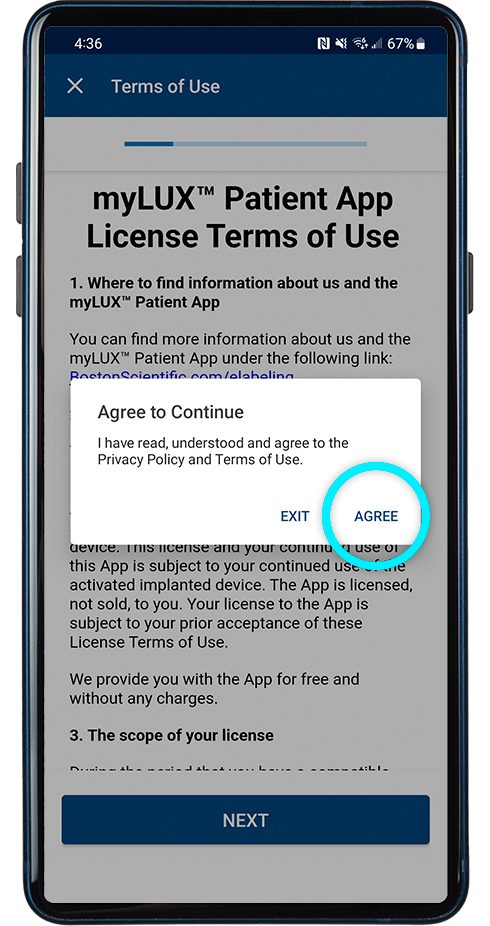
Read the license terms of use and privacy policy. Tap Agree.

license terms of use screen with prompt to agree

Step 4

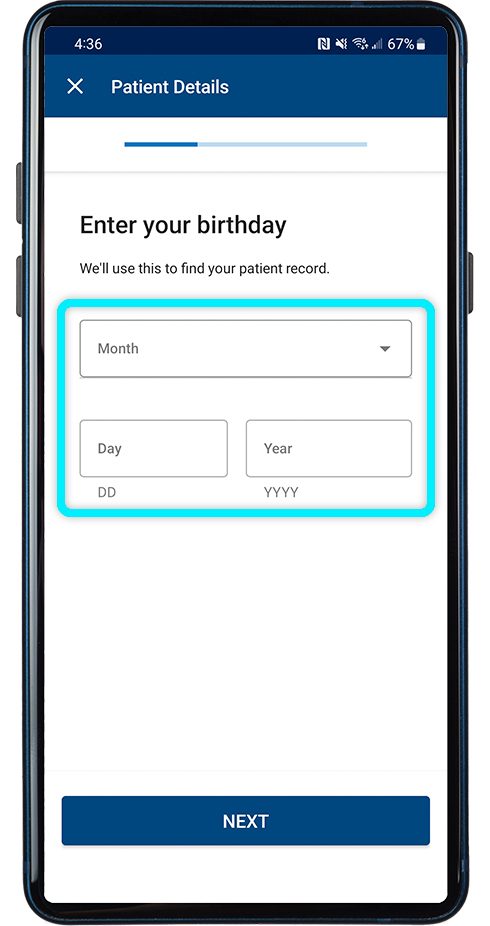
Enter your birth date.

screen to input your birthdate

Step 5

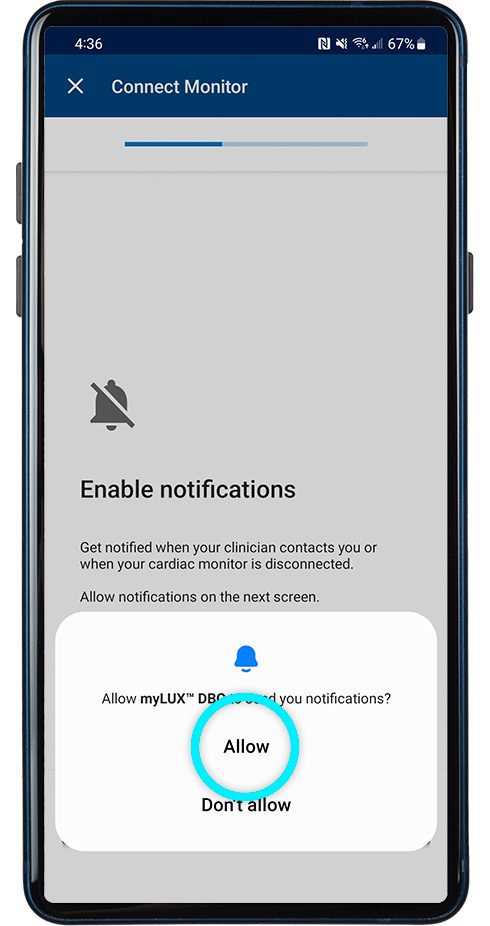
Tap Allow for notifications if you have a smartphone with newer Android versions (13 and later).

You must do this so the app can send you alerts if you lose connectivity or there’s other important information to know.

screen prompt to allow notifications

Step 6

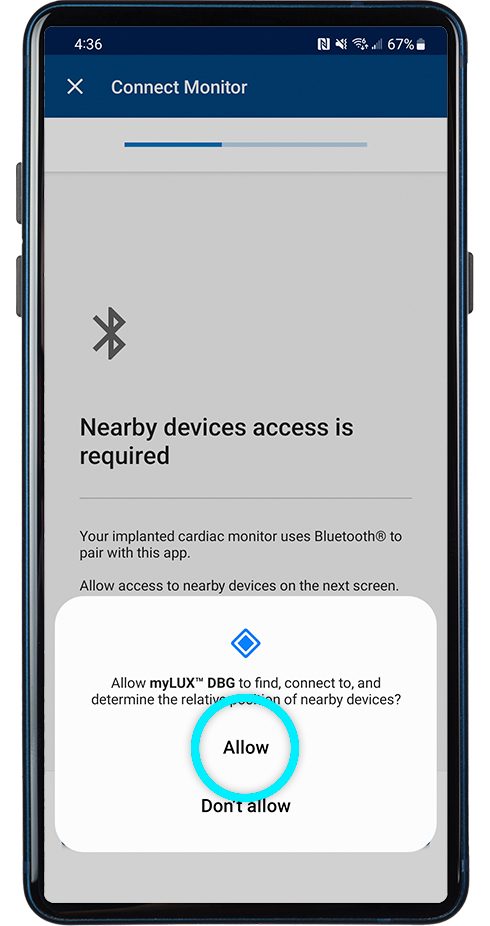
Tap Allow to allow access to nearby devices. This is required for the app to connect with your ICM.

screen prompt to allow Bluetooth

Step 7

Remove the blue magnet from your myLUX™ Patient Kit. Hold the magnet over your cardiac monitor and wait for a vibration on your smartphone. After you feel the vibration, tap Pair and then move the magnet away from your chest. You may see multiple pairing requests throughout the setup process—tap Pair each time as it comes up. This may take a couple of minutes.

screen prompt to allow Bluetooth pairing

Step 8

Enter your phone number or email address.

Tap Next and you’ll receive a one-time security code. If it doesn’t autofill, type in the code.

screen prompt to allow Bluetooth pairing

Finish

If you see a green screen, your setup was a success. Tap Done. You can now use the myLUX Patient App to stay connected to your health care provider.

green screen showing successful set up

Check the myLUX Patient App often. Always look for a blue screen and a check mark icon after you open your app. This confirms that your monitoring is up to date.

To learn more about the app, tap the Learn button within the myLUX Patient App.

screen with button to learn more about the myLUX app

Step 1

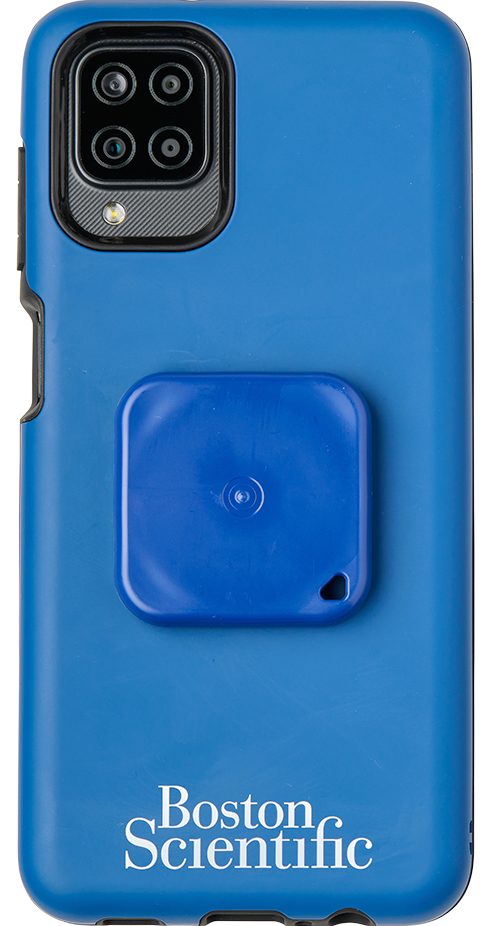
Attach the magnet to the back of your mobile device.

myLUX app magnet on back of smartphone

Step 2

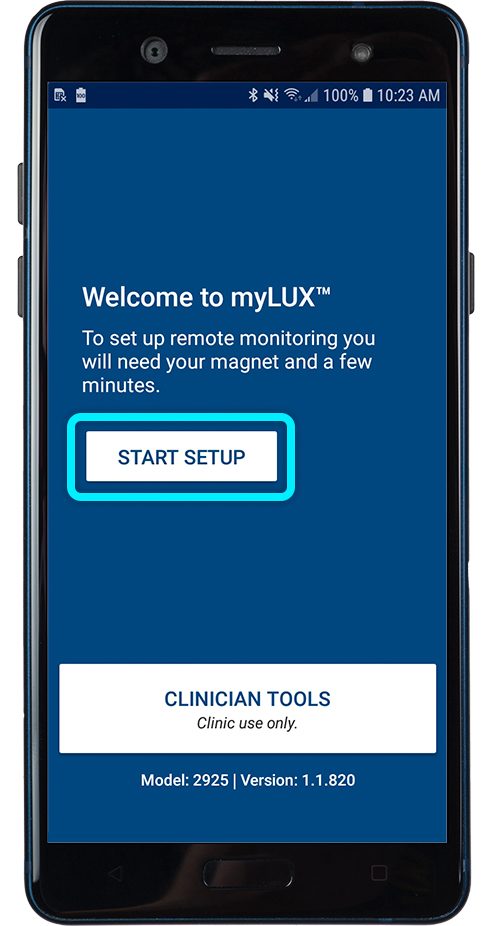
Make sure you have a cellular signal or Wi-Fi connection. Then tap Start Setup.

myLUX app Welcome screen to start set up

Step 3

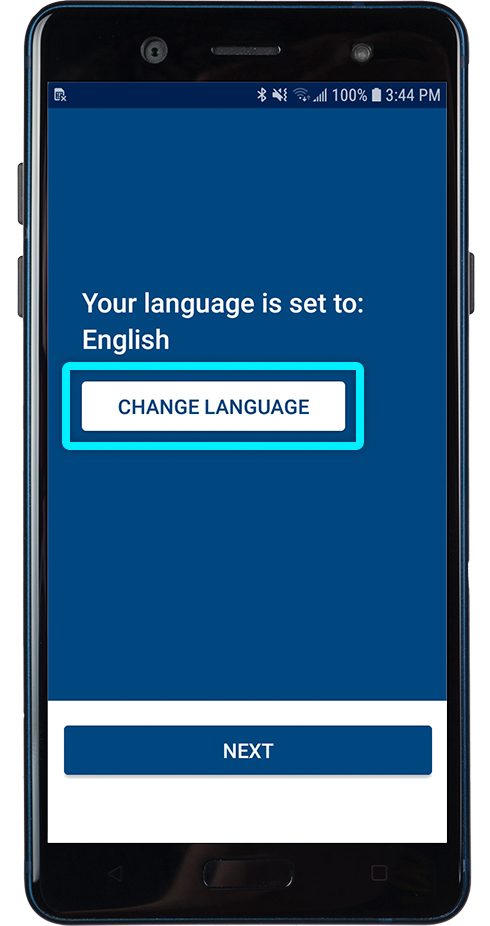
You’ll have the opportunity to change the language. If it’s already set to the language you want, simply tap Next.

screen prompt to change language

Step 4

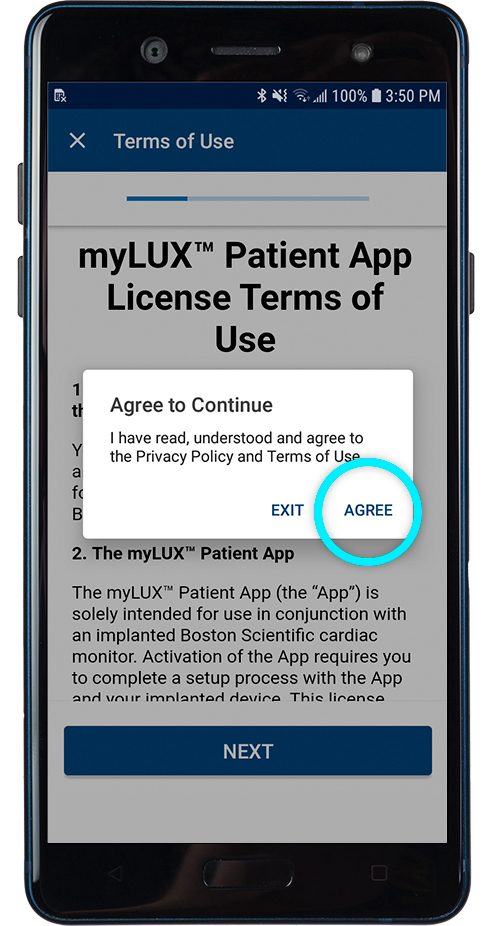
Read the license terms of use and privacy policy. Tap Agree.

screen prompt to agree to terms of use

Step 5

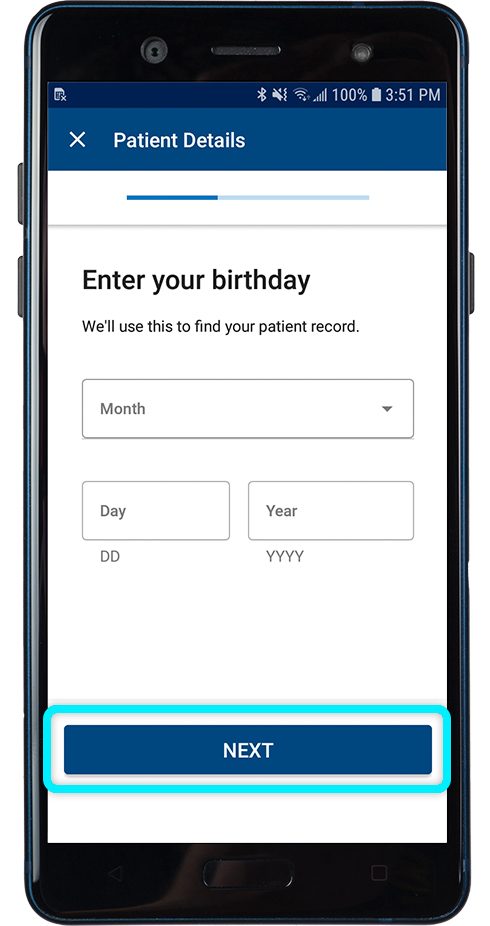
Enter your birth date and tap Next.

prompt to enter your birth date

Step 6

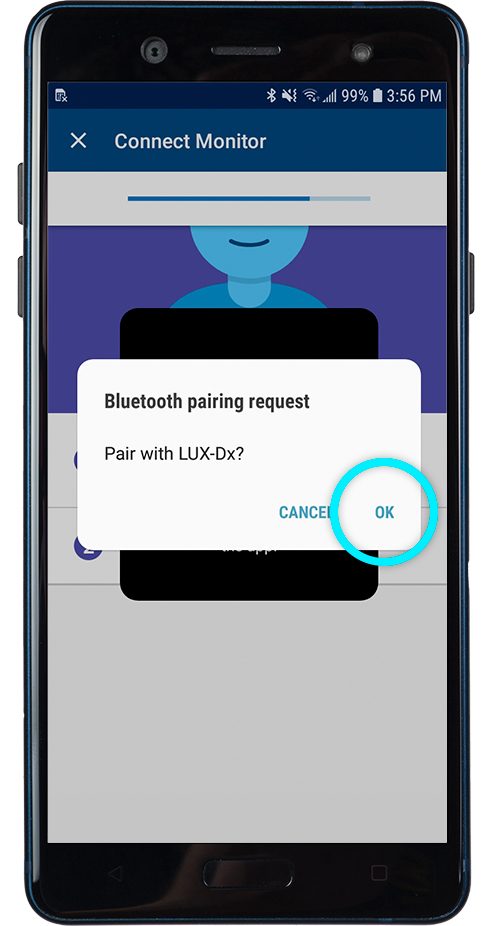
Hold your mobile device with the magnet over your cardiac monitor and wait for a vibration. It should take just a couple of minutes. After you feel the vibration, you can move the mobile device away from your chest. You may see multiple pairing requests throughout the setup process – tap OK each time it comes up.

screen prompt to allow Bluetooth pairing

Step 7

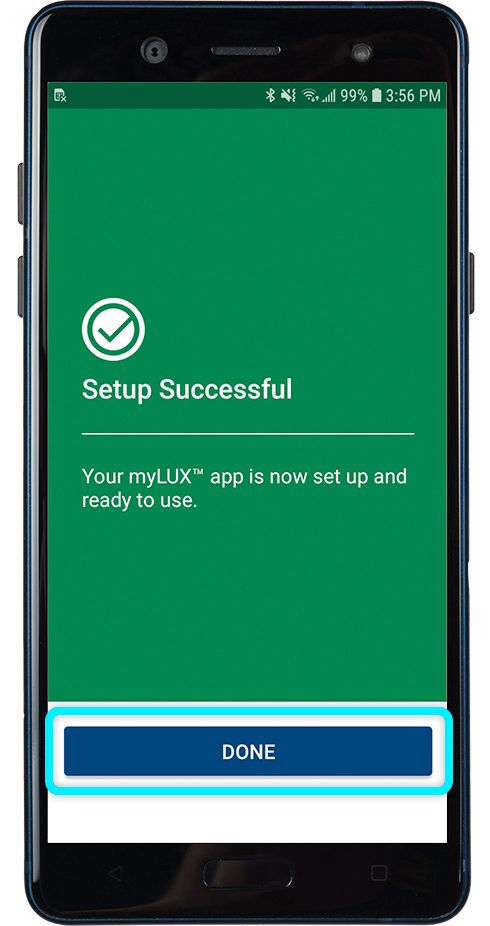
If you see a green screen, your setup was a success. Tap Done. Your myLUX Paient App is now connected and can transmit data to your health care team.

green screen showing successful set up

Step 8

Check the myLUX Patient App often. Always look for a blue screen and a check mark icon after you open your app. This confirms that your monitoring is up to date.

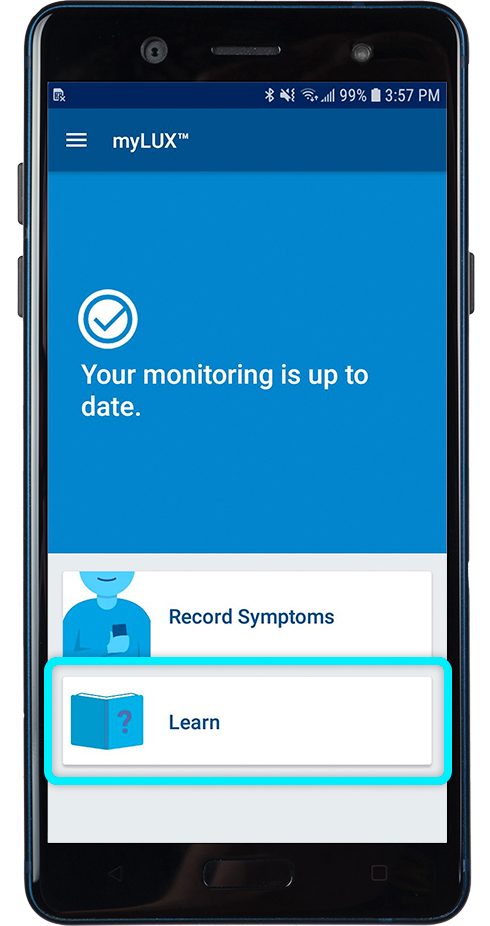
To learn more about the app, tap the Learn button within the myLUX Patient App.

screen with button to learn more about the myLUX app

We’re here to help 

Call Boston Scientific RhythmCARE™ Patient Services at 1-866-484-3268, Monday–Friday during business hours and select the option for LUX-Dx™ ICM.

Support and resources

*The downloadable myLUX™ Patient App and RhythmCARE™ Assist Service may be available for compatible LUX-Dx™ ICMs. Check with your health care provider for more information.

Some pictures of phone screens and buttons may look different on your mobile device based on specific phone models or OS versions.

Android is a trademark of Google LLC. iPhone is a trademark of Apple Inc.

All trademarks are the property of their respective owners.